
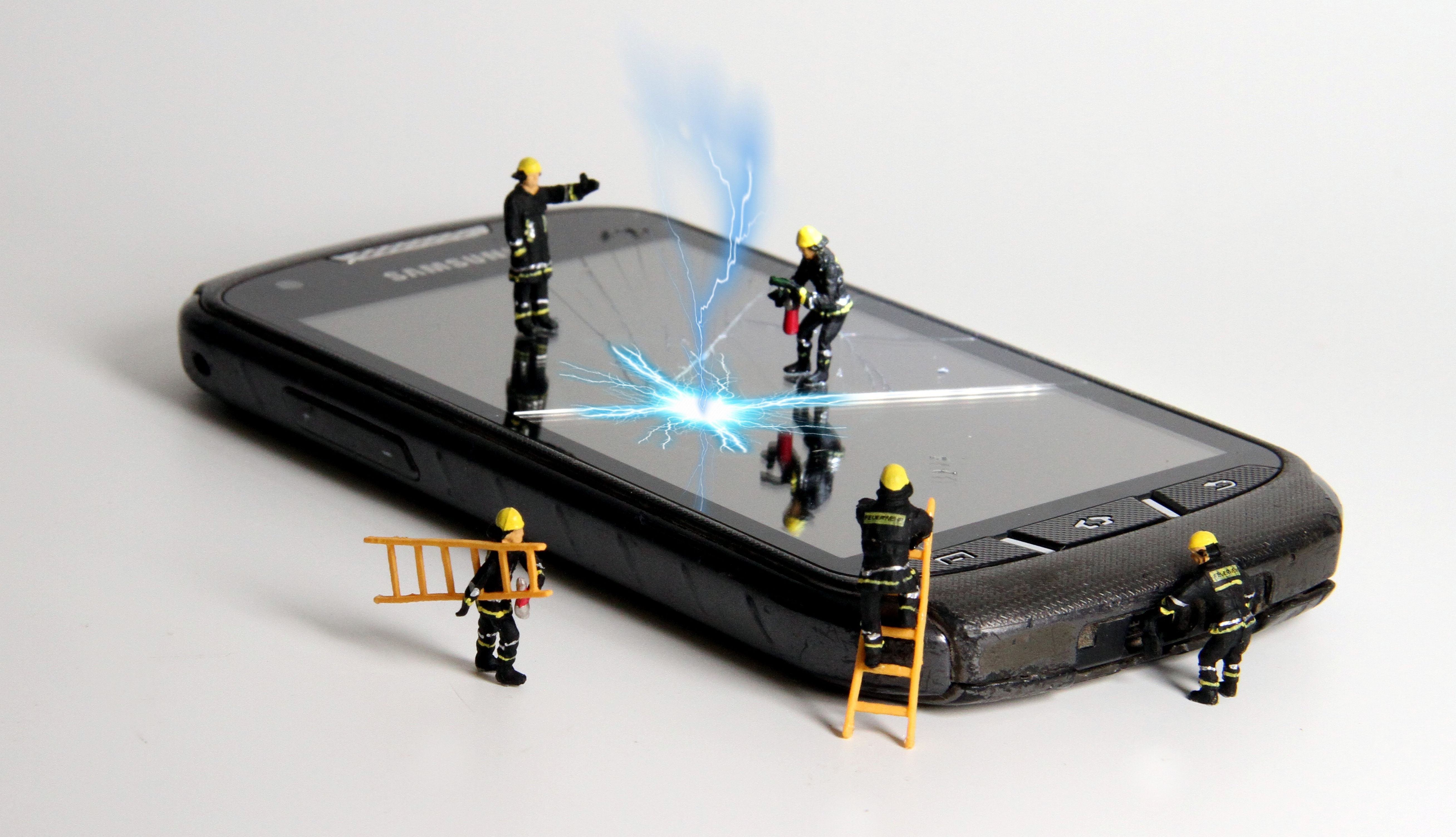
Back up your Galaxy S25 today, while the touchscreen still responds, then get the screen replaced before the damage spreads. A cracked panel that still works is a warning, not a stable state, and the cheapest moment to protect your photos and messages is before the display gives out completely.
That order matters. Screen repair is routine; lost data is not recoverable by swapping glass. Do the backup first, turn on Maintenance mode, and then book the repair.
Decide how urgent it is from what the screen is doing
Look at the display with it switched on and match what you see to one of these. Each one points to a different kind of damage and a different deadline.
- Cracked glass, picture and touch both normal. The outer glass has taken the hit. Samsung notes that a case or screen protector can reduce damage, but once damage is present a repair may be necessary as soon as possible [1]. Book it this week. Do not wait for it to get worse before acting.
- Black spot that looks like an ink stain. Treat this as panel damage even if the glass looks intact. Samsung describes an ink-stain black spot appearing where the glass is not damaged but the inner parts of the screen have been damaged by prolonged pressure [1], and warns that this type of damage may spread over time [4]. Back up immediately.
- Coloured or black lines across the display. Samsung calls this pixel bleeding, usually caused by direct impact, showing as black or coloured lines in the pixel rows or columns [1]. Back up immediately.
- Screen black, but the phone still vibrates, rings or charges. The phone is alive and the display is the casualty. Your data is still reachable, but only with the workarounds below.
If you are in the first group, you have time to plan. If you are in any of the other three, do the backup section below before anything else today.
Back up the phone before the touchscreen goes
Use whichever route still works. Start with the one that needs the least from the damaged screen.
If you can still see and touch the screen
Run a full backup now through Samsung Cloud or Smart Switch on a computer. Smart Switch backs up the phone's files to a PC or Mac over a USB cable, and Samsung specifies that the cable has to support data transfers [3]. Use a data cable, not a charge-only lead.
If you cannot see the screen but touch still works
Plug it into a TV. Samsung's guidance is that a phone with a screen you can no longer see, but a touchscreen that still responds, can be connected to a TV or PC monitor over HDMI using a USB-C to HDMI adapter [3]. You then operate the phone by touch while watching the television. Expect a short lag between your finger and the picture, which Samsung also notes [3], so move slowly.
If touch is dead in part or all of the screen
Use a mouse. Samsung confirms that connecting a USB mouse or keyboard through an adapter lets you unlock a device protected by a PIN, password or pattern so that you can back up your data [3]. Combine the mouse with an HDMI adapter if you cannot see the display either.
Do not plan on dragging files straight off the phone to a laptop as your only fallback. Samsung states that your phone has to be unlocked for you to access your files by USB cable [3], so a phone you cannot unlock will not hand over its photos that way.
If none of these work, stop there rather than pressing harder on broken glass. Bring it to us and ask for a data recovery assessment alongside the screen.
Turn on Maintenance mode before you hand it over
Switch Maintenance mode on before the phone leaves your hands, whoever is repairing it. The Galaxy S25 series is on Samsung's list of supported devices [2].
Here is what it does. Samsung describes Maintenance mode as designed to protect and hide your personal data during a repair: it creates a separate user account with no access to your personal data, where only pre-installed apps can be used [2]. Whoever tests the phone works inside that separate account, not yours.
- Open Settings.
- Tap Battery and device care.
- Tap Maintenance mode and turn it on [2].
Set a screen lock first if you do not have one. Samsung requires a PIN, password, pattern or fingerprint before Maintenance mode can be enabled, and you will need that same lock method to exit it after the repair [2]. Write it down somewhere other than the phone.
Take the temporary backup it offers as well. From the Maintenance mode screen you can back up to Samsung Cloud, and Samsung keeps those files for 30 days from the date the backup is created, after which they are deleted and the period cannot be extended [2]. That is more than enough time for a same-day repair, but do not treat it as permanent storage. Restore or copy what matters once the phone is back.
Samsung is explicit on the underlying point: always back up your device before sending it for repair, as data could be lost [2]. Maintenance mode hides your data; it does not insure it.
Know what a screen replacement on an S25 involves
Expect a full display assembly, not a glass-only fix. Samsung explains that the screen is a single part made up of the display panel, the tempered glass and the front case [1]. Its cheaper partial repair, which replaces the panel or glass while reusing the front case, is limited to a named list of older models such as the Galaxy S21 and S20 families [1]. The Galaxy S25 is not on that list, so plan for a complete screen replacement.
So do not shop for a "glass-only" S25 repair. If the glass is cracked, plan for the assembly to be replaced, and check touch across the whole screen before you leave the counter.
Check the back too. Samsung notes that a damaged back glass can be replaced, and that the cost and method can depend on whether there is internal damage to look at as well [1]. Turn the phone over before you book and mention any damage you find on the back or frame, so it is assessed in the same visit.
Choose where to get it done
You have two sensible routes, and the right one depends on what you need.
Go to Samsung's own service network if you want Samsung genuine parts specifically, or if the phone is covered by a Samsung protection plan. Samsung Service Centres repair screens using genuine Samsung Authorised parts, and a technician confirms the repair method and cost after checking the damage [1].
Come to us if you need the phone back today. Here is exactly what we commit to on a Galaxy screen replacement:
- A free diagnostic check, with a fixed price confirmed before any work begins.
- No fix, no fee.
- Premium OEM-quality parts only.
- Same-day turnaround, with many screen repairs completed in under an hour.
- Touch sensitivity, display brightness, colour accuracy and surrounding functions tested before the phone is handed back.
- A 90-day warranty on screen replacements, covering parts and labour.
Whichever you pick, arrive with the backup done and Maintenance mode switched on. It keeps your data private and it removes the one thing that turns a routine screen job into a stressful one.
What not to do while you wait
- Do not keep swiping across loose or splintered glass. Use the phone as little as possible until the backup is done and the screen is booked in.
- Do not press on black spots or lines to "see if they move". Samsung links ink-stain spots to pressure damage inside the screen [1]. More pressure is the wrong test.
- Do not factory reset it to "fix" touch problems. A reset wipes the data you are trying to save and does nothing for a physically damaged panel.
- Do not leave the backup until after the repair. If the display fails completely, the routes that rely on seeing the screen stop working.
Bring your Galaxy S25 in today
Walk in to Best Tech Repair at Unit 4, Piccadilly Circus Underground Station, London W1J 9HS. We are open 10:00 to 22:00, seven days a week, so you can come before work or on the way home. Back up the phone and turn on Maintenance mode first, then bring it to the counter for a free diagnostic and a fixed price before we touch it. If you would rather check first, call us on 020 3417 7090.
Sources
- My device is shattered and there is a crack on my screen | Samsung UK — www.samsung.com
- How to use Maintenance mode on your Galaxy phone or tablet | Samsung UK — www.samsung.com
- I smashed my screen and can't use the touchscreen. Is there any way to access my data? | Samsung UK — www.samsung.com
- Samsung Galaxy device screen is cracked or damaged — www.samsung.com