
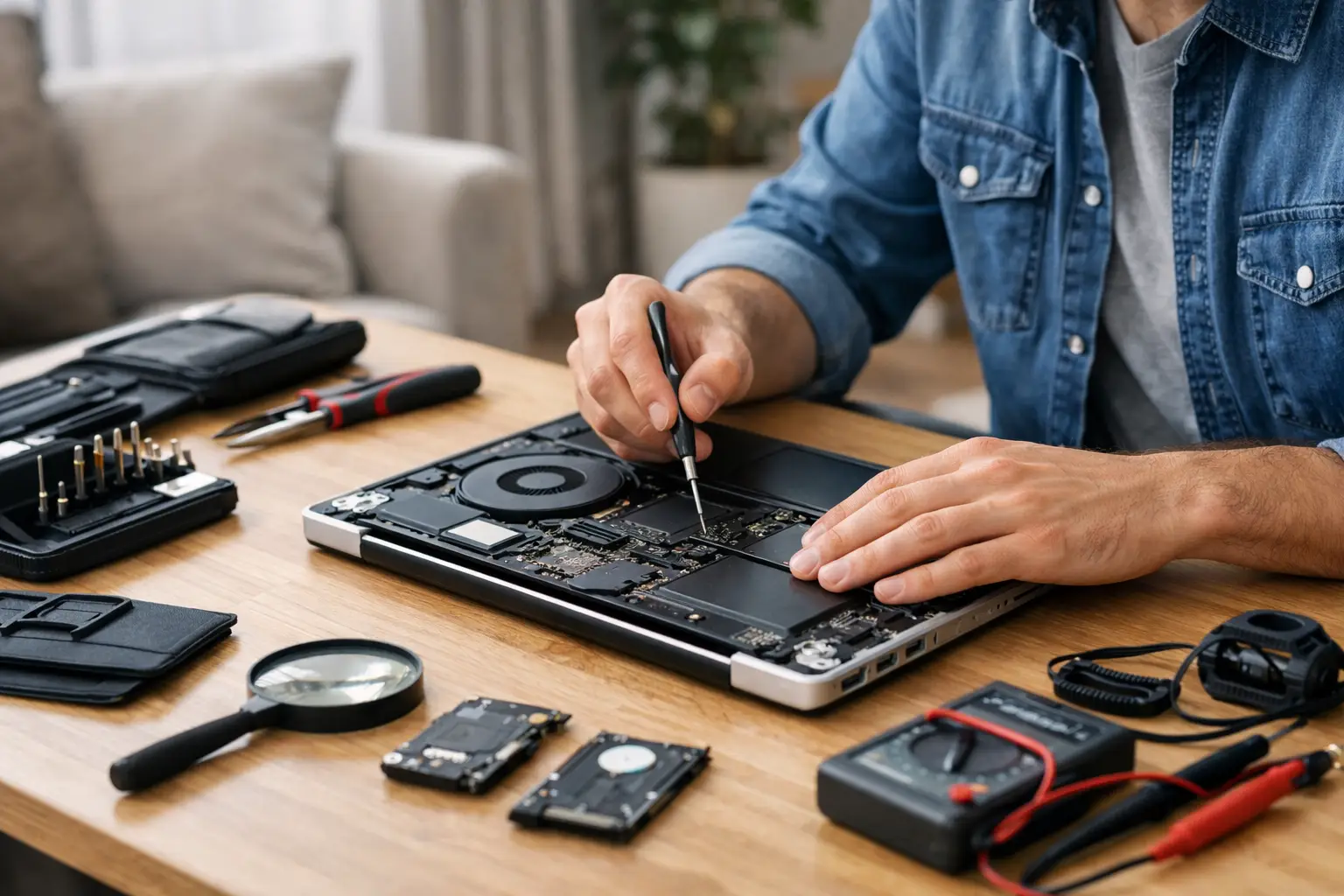
A laptop that suddenly stops charging, overheats mid-meeting or shows a black screen rarely picks a convenient moment. If you are searching for how to repair a laptop at home, the first thing to know is this: some problems are simple and safe to deal with yourself, while others can get expensive very quickly if you guess wrong.
The smart approach is to start with the easy checks, avoid anything that risks your data, and recognise when a proper repair will save you time and money. For everyday users, that is usually the difference between a quick fix and making a bad fault worse.
Before you repair a laptop at home
Start by switching the laptop off fully and unplugging the charger. If any USB devices, SD cards or accessories are connected, remove them. It sounds basic, but many apparent laptop faults come from a bad charger, a faulty accessory, or a frozen system rather than a serious internal problem.
If the laptop still turns on, back up your files before doing anything else. Even if the issue seems minor, repairs can become recoveries without much warning. Copy your important documents, photos and work files to cloud storage or an external drive if you can.
You should also check whether the laptop is still under warranty. Opening the case on some models can void cover, especially with newer ultrabooks and premium devices. If that applies, a home repair may cost more in the long run.
The safest home fixes to try first
When people ask how to repair a laptop at home, they are usually dealing with one of a handful of common issues: it will not turn on, it is running slowly, it gets too hot, the battery drains too fast, or the screen or keyboard is not behaving properly. The good news is that the first checks for these problems are straightforward.
If the laptop will not turn on
First, rule out the charger. Check that the cable is seated properly at both ends and inspect it for fraying, bent connectors or heat damage. If you have access to a compatible charger, test with that. A failed charger is far more common than most people think.
Next, do a hard reset. On many laptops, you can disconnect the charger, hold the power button for 15 to 30 seconds, then reconnect power and try again. This can clear a temporary power issue after a crash or failed update.
Look for small signs of life as well. Charging lights, fan noise or keyboard backlight flickers can tell you the motherboard is still receiving some power. No signs at all may point to the charger, charging port, battery or internal board fault.
If the laptop is very slow
A slow laptop does not always need a repair. It may just need cleaning up. Open Task Manager and check which apps are consuming memory, processor power or disk usage. Too many startup programmes can make even a decent machine feel tired.
Uninstall software you no longer use, clear temporary files and restart the laptop properly instead of leaving it asleep for days. If storage is nearly full, performance can drop sharply. Freeing space often helps more than people expect.
If the machine has become slow all of a sudden, run a malware scan. That is especially worth doing if you notice pop-ups, browser redirects or fans running constantly without any obvious reason.
If the laptop overheats
Heat is one of the biggest laptop killers, and it is one of the few things you can often improve at home without opening the machine. Start by checking where you use it. A laptop on a duvet, sofa or your lap can block vents and trap hot air.
Move it to a hard, flat surface and inspect the vents for visible dust. Use a soft brush or gentle bursts of compressed air from the outside only. Do not blast dust deeper into the system, and do not stick metal objects into vents.
If the fan is loud all the time, performance drops under light use, or the base gets uncomfortably hot, internal dust build-up or dried thermal paste may be the real issue. That is repairable, but not always ideal for a first-time home job.
If the battery drains too quickly
Battery life naturally gets worse over time, especially on older laptops. Before assuming the battery needs replacing, reduce screen brightness, close power-hungry apps and check battery health settings if your device offers them.
A swollen battery is different. If the trackpad lifts, the base bulges, or the chassis no longer sits flat, stop using the laptop immediately. Do not press it back into shape or keep charging it. That is a safety issue, not a DIY experiment.
If keys, ports or the screen are unreliable
A few non-working keys may be caused by dirt, crumbs or liquid residue. You can turn the laptop off, tilt it slightly and use careful compressed air around the keyboard. If liquid was spilled recently, however, the problem may be internal corrosion rather than surface debris.
For USB ports, try a different device first. A dead port can actually be a dead accessory. For screen issues, check whether the display problem appears only in certain positions. If moving the lid changes the image, the display cable or hinge area may be damaged.
What you can repair at home - and what you should leave alone
There is a big difference between basic troubleshooting and component-level repair. Home fixes are reasonable when they involve software clean-up, external cleaning, charger checks, battery settings, or replacing an easy-access part on an older laptop. Some models make RAM or SSD upgrades fairly simple. Others are tightly sealed and easy to damage.
Screen replacement, charging port repair, motherboard work, liquid damage treatment and battery replacement on glued-in units are riskier. The same goes for anything involving delicate ribbon cables, adhesive pull tabs or soldering. If you are already unsure what part has failed, taking the laptop apart usually adds guesswork rather than clarity.
That does not mean home repair is a bad idea. It just depends on the fault, the laptop model and how comfortable you are working with small components. Saving money only makes sense if the repair is done right the first time.
Tools and habits that actually help
If you are going to attempt a minor repair, work on a clean, well-lit table and keep screws organised as you remove them. Laptop screws often look similar but have different lengths. Putting the wrong screw back in the wrong place can damage the casing or internal board.
Use the right screwdriver size, and never force a panel open. If something does not lift easily, there is probably another hidden screw or clip. Taking a photo at each stage helps with reassembly and saves a lot of frustration later.
Avoid static build-up by not working on carpet and by grounding yourself before touching internal parts. You do not need a full workshop for a simple job, but you do need patience.
When home repair stops being the best option
If your laptop has liquid damage, no power, a cracked screen, charging issues, data you cannot lose, or signs of motherboard failure, a professional diagnosis is usually the safer move. These faults can look simple from the outside and still involve multiple damaged components inside.
There is also the time factor. A student with coursework due, a commuter who relies on their laptop for work, or a traveller needing quick access to bookings usually does not benefit from spending a weekend watching repair videos and hoping for the best. Fast, honest diagnosis matters just as much as the repair itself.
That is why many customers choose a specialist repair service once the basic checks are done. If you need a quick answer and do not want to risk further damage, Best Tech Repair can assess common laptop faults and advise whether the issue is worth repairing or replacing.
A sensible way to think about how to repair a laptop at home
The best DIY laptop repair is often the one that starts with restraint. Check the charger, back up your files, clean what you safely can, and pay attention to the signs your laptop is giving you. If the fix is simple, great. If it is not, stopping early is not failure - it is good judgement.
Your laptop is there to keep life moving, whether that means work, study, travel or keeping up with the day. Treat it carefully, fix the easy faults with confidence, and when the problem goes beyond that, get it sorted properly before a small issue turns into a bigger one.