
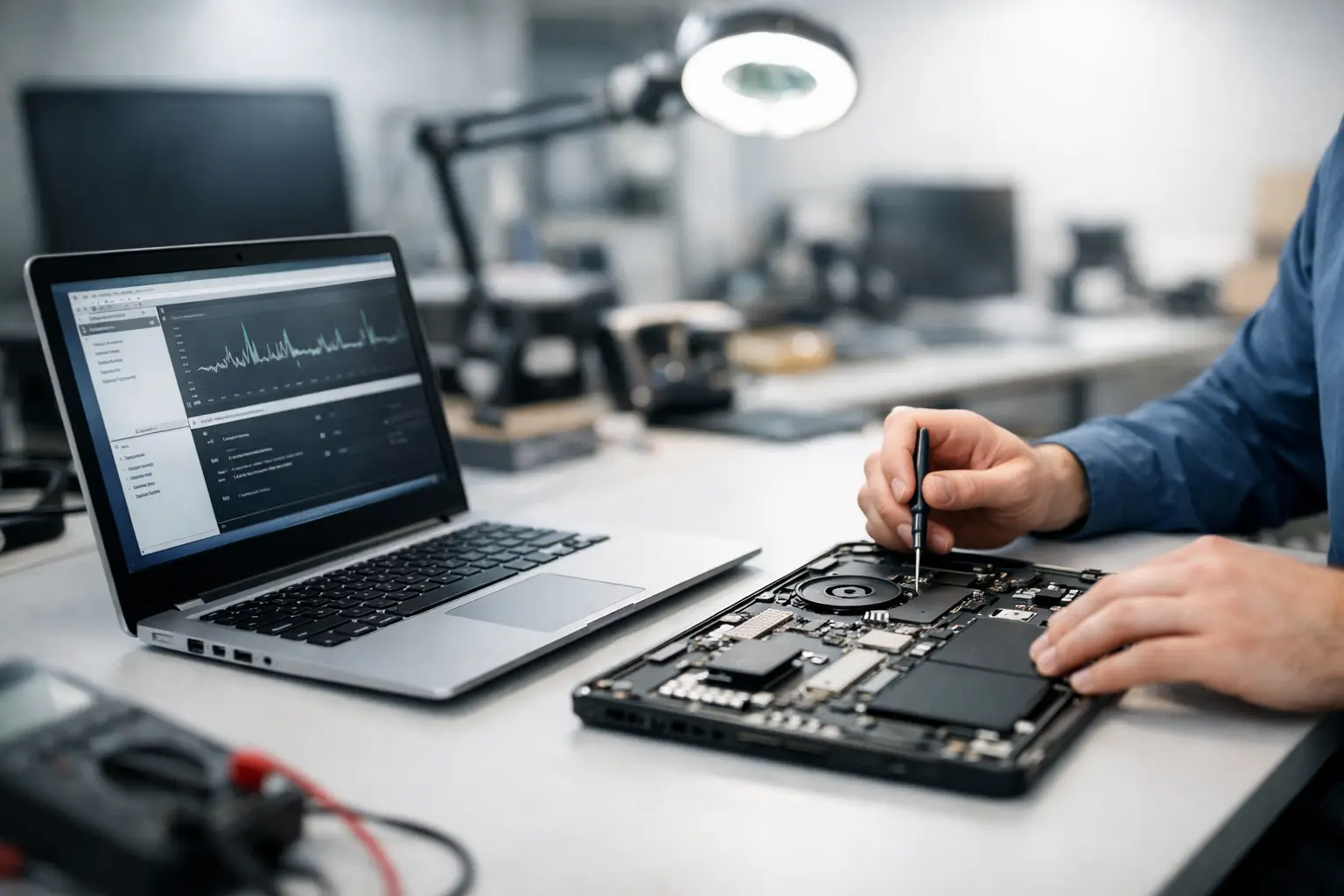
Your laptop fails five minutes before a meeting, an assignment deadline or a train journey. You do not need vague advice or days of waiting. Same day laptop diagnostics give you a clear answer on what has gone wrong, what can be fixed, and what the next step is.
Whether your device will not switch on, has become painfully slow or has suffered a spill, the right diagnosis is the fastest route back to normal. At Best Tech Repair, the focus is simple: inspect the problem carefully, explain it in plain English and help you make an informed decision without unnecessary delay.
What Same Day Laptop Diagnostics Actually Involve
A diagnostic is not a guess based on one symptom. A laptop that will not charge, for example, could have a faulty charger, damaged charging port, worn battery, motherboard fault or software issue. Replacing the first part that looks suspicious may waste time and money.
A technician starts by checking the basics, then tests the areas most likely to cause the fault. This may include the power input, battery health, screen and display connection, keyboard, storage drive, memory, cooling system and operating system. If the laptop switches on, software checks can also reveal problems such as failed updates, malware, corrupted files or a drive nearing failure.
The outcome should be clear. You should know what fault has been found, whether a repair is sensible, how long it is likely to take and what it will cost before work begins. That clarity matters, especially when the laptop holds work files, coursework, photos or travel documents.
When You Need a Same Day Laptop Diagnostic
Some faults are obvious, such as a cracked screen. Others show up as small warning signs that become bigger problems if they are ignored. A same-day check is useful when your laptop is behaving differently but you cannot afford to be without it for long.
Slow start-up, freezing apps and repeated error messages can point to a software issue, but they can also signal a failing storage drive or overheating. A loud fan may simply need cleaning, yet it may also be working overtime because the laptop cannot cool itself properly. If the machine is hot, shuts down at random or has a swollen battery, stop using it and arrange an inspection promptly.
Water damage is another situation where speed matters. Turn the laptop off, disconnect the charger and avoid trying to power it back on repeatedly. Heat from a hairdryer can push moisture further inside, while continued charging can cause more damage. A professional assessment can identify corrosion and affected components before the fault spreads.
Common Laptop Problems We Diagnose
It will not turn on or charge
No power does not automatically mean the laptop is beyond repair. The cause may be as straightforward as a failed charger or battery. In other cases, the charging socket, internal power circuit or motherboard requires attention. Diagnostics separate these possibilities so you are not paying for parts that will not solve the problem.
The screen is black, flickering or distorted
A black display can be caused by the screen itself, a loose cable, graphics fault or an issue stopping the laptop from booting. Flickering and coloured lines may indicate physical display damage, while a dim image can suggest a backlight problem. Testing the laptop correctly reveals whether the issue is isolated to the screen or sits elsewhere.
It is slow, crashing or stuck in a restart loop
A slow laptop is frustrating, but the answer is not always a replacement. Too many background programmes, limited storage, a damaged operating system or malware can all affect performance. Older machines may also benefit from a storage or memory upgrade, depending on the model and your needs. A diagnostic helps distinguish a worthwhile repair from a short-term fix.
The keyboard, trackpad, camera or ports have stopped working
One failed feature can sometimes be repaired individually. However, liquid exposure, impact damage and loose internal connections can affect several components at once. A full check helps establish whether the fault is localised or part of a wider issue.
What to Do Before You Bring Your Laptop In
If the laptop still works, back up important files if you can. Save current work to a secure cloud account or an external drive, especially if the device is making clicking noises, regularly crashing or showing storage warnings. Do not keep using it heavily in the hope that it will improve.
Bring the charger with you when charging or power is part of the problem. It can help rule out a faulty adapter quickly. If you know the laptop password, having it available may allow the technician to test the operating system and confirm software faults properly. You do not need to share personal account passwords. A reputable repair service should only request what is necessary for the agreed work.
It also helps to describe what happened just before the issue began. Did the laptop fall? Was there a recent update? Did it get wet? Did it start running hot after a particular programme was installed? These details can shorten the diagnostic process and lead to a more accurate answer.
Diagnosis First, Repair Second
A good diagnostic service protects you from rushed decisions. If a repair is straightforward and the required part is available, it may be possible to move directly from diagnosis to repair on the same day. That is often ideal for a commuter, student or office worker with no spare device.
There are trade-offs, though. Complex motherboard repairs, severe liquid damage and parts that need ordering can take longer. An older laptop with several faults may cost more to repair than it is worth, particularly if its battery, storage and screen all need replacement. In that case, honest advice is more valuable than pushing an uneconomical repair.
The aim is not to make every laptop repairable at any cost. It is to give you a sensible option based on the device, the fault, the condition of your data and how urgently you need it back.
Why Clear Pricing and Careful Testing Matter
The cheapest quoted repair is not always the best value if the real fault has not been confirmed. A proper assessment helps avoid repeat visits, wrong parts and surprise costs. Once the issue is identified, you should receive an explanation of the recommended repair rather than a confusing technical report.
Careful testing matters after the repair too. A replacement part should be checked alongside the features that interact with it. For example, after a charging repair, the laptop should be tested for stable power delivery and battery charging. After a screen repair, brightness, image quality and display connections need checking. This is how repairs are done right the first time.
Fast Help in Central London
Laptop trouble rarely happens at a convenient time. A walk-in diagnostic option near your route can make a real difference when you need answers between work, lectures, appointments or travel. Best Tech Repair is located inside Piccadilly Circus Underground Station, making it easier to have an urgent device checked without adding a long detour to your day.
If you are unsure whether your problem is hardware, software or simply a worn-out battery, do not spend the evening searching for conflicting fixes. Bring the laptop in for a proper same-day assessment, get a clear explanation and choose the repair that makes sense for you.