
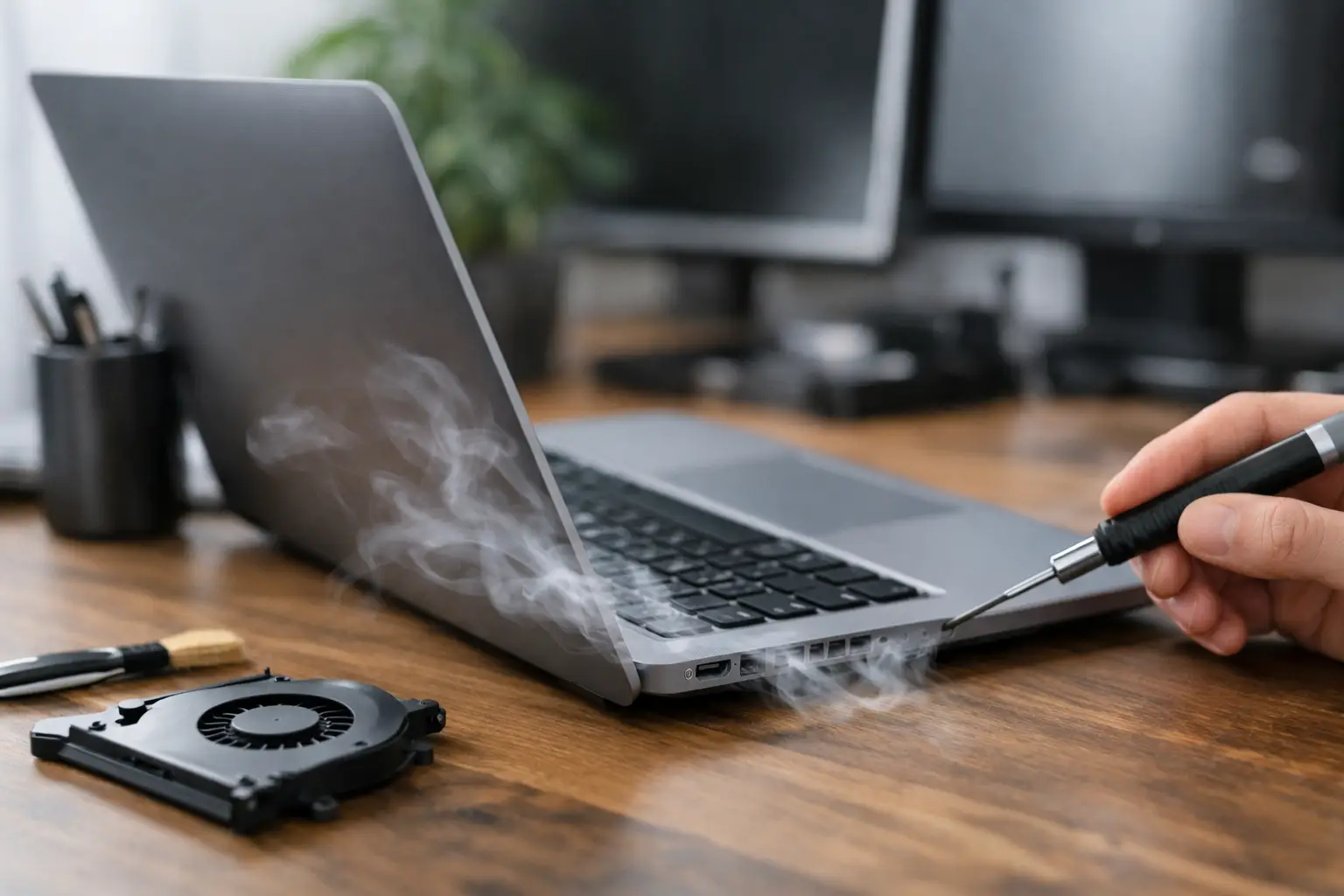
A laptop fan is meant to make some noise when you are exporting a video, joining a long video call or playing a game. It should not sound like it is constantly working at full speed while you answer emails or browse the web. If you are asking, “why is my laptop fan loud?”, the answer is usually that your laptop is generating more heat than it can release efficiently.
The good news is that a loud fan does not always mean the laptop is about to fail. It can be caused by a demanding app, blocked vents or a simple build-up of dust. However, if the noise is new, persistent or paired with overheating and slow performance, it is worth dealing with early. Heat can shorten the life of key components and turn a manageable repair into a more expensive problem.
Why Is My Laptop Fan Loud All of a Sudden?
Your fan becomes louder when the processor, graphics chip or battery is working harder and producing extra heat. The system responds by increasing fan speed to protect itself. That is normal behaviour, but the reason for the extra heat needs attention if it keeps happening during light everyday use.
A sudden change often follows a software update, a newly installed programme or many browser tabs running at once. A laptop can also become noisy after being used on a bed, sofa or lap, where soft fabric blocks the air vents underneath. Even a slim layer of dust inside the cooling system can restrict airflow enough to make a noticeable difference.
The key distinction is between a fan that is briefly busy and one that is constantly loud. Short bursts are usually normal. A fan that races from start-up, continues when no apps are open, or makes an unusual mechanical sound needs a closer look.
Common Causes of a Loud Laptop Fan
Too many demanding tasks running
Web browsers are a frequent cause, especially with many tabs open, video streaming, online meetings and extensions all running at once. Photo editing software, games, file syncing and background updates can also use a large amount of processing power without being obvious.
On a Windows laptop, open Task Manager and check which programmes are using the most CPU, memory or disk activity. On a Mac, use Activity Monitor for the same purpose. Closing a programme you do not need can reduce fan noise within a few minutes. If one unfamiliar process is continually using a high percentage of CPU, it may need further investigation.
Dust blocking the cooling system
Air is pulled through the laptop to cool the internal components. Over time, dust, lint and pet hair can collect around the vents, heatsink and fan. The fan then has to work harder to move enough air, often becoming louder while the laptop still feels hot.
You may notice this most on an older laptop or one that travels daily in a backpack. London commuting adds plenty of dust and debris to everyday electronics. Cleaning the outside vents carefully can help, but internal cleaning is more effective when there is a significant build-up.
Avoid pushing a powerful vacuum directly into the vents or spraying liquids into them. Compressed air can be useful when used carefully, but it can also move dirt deeper into the device or make the fan spin excessively if used incorrectly. For a laptop that is overheating, professional internal cleaning is the safer option.
Blocked airflow and a hot working environment
Your laptop needs a hard, flat surface with clear space around its vents. Using it on bedding, a cushion or your knees for long periods traps heat and causes the fan to compensate. A warm room, direct sunlight or charging while carrying out intensive work can add to the problem.
Move the laptop to a desk or table and give it a few minutes to cool down. A stand can improve airflow, particularly for thin laptops with vents on the underside. This is a practical fix for occasional noise, although it will not solve an internal dust issue or failing component.
Old software, malware or a stuck process
Software can cause a fan problem without there being anything physically wrong with the fan. An update may be installing in the background, a programme may have frozen, or a browser tab may be consuming far more power than it should. Malware can also cause unusually high processor activity.
Restarting the laptop is a sensible first step because it clears many temporary processes. Then install pending operating system and driver updates, remove software you no longer use and run a trusted security scan. If the fan becomes loud only after opening a particular programme, that programme is likely part of the issue.
Battery or charging problems
A faulty or ageing battery can create heat, particularly while charging. So can an unsuitable charger or damaged charging cable. If the laptop is hot near the battery area, loses charge quickly, switches off unexpectedly or shows a swollen case, stop using it and arrange an assessment promptly.
Do not press down on a bulging trackpad, case or keyboard to force it back into shape. A swollen battery is a safety concern, not a cosmetic issue. It needs careful replacement rather than a quick home fix.
A worn or damaged fan
Fan noise is not always simply loud airflow. Clicking, rattling, scraping or grinding can point to a worn bearing, a loose part or debris touching the fan blades. In this situation, cleaning the vents from the outside is unlikely to fix the cause.
A damaged fan may still run for a while, but it can eventually stop or cool the laptop poorly. Replacing it early helps protect the processor and other heat-sensitive components from repeated overheating.
Safe Checks You Can Do at Home
Start by saving your work and restarting the laptop. Once it has restarted, use it on a hard surface with nothing covering the vents. Close unused browser tabs and applications, then wait five to ten minutes to see whether the fan settles.
Next, check for pending system updates and look at CPU usage through Task Manager or Activity Monitor. High usage while you are doing very little is a useful clue. If the laptop quietens when one app is closed, you have a clear place to start.
You can gently wipe dust from the exterior vents with a clean, dry soft brush. Do not open the laptop unless you are confident you have the right tools and understand the risks. Modern laptops can have delicate clips, compact cooling assemblies and batteries that are easy to damage during DIY work. Opening the case may also affect warranty cover on some devices.
A cooling pad can reduce temperatures in some situations, but it is not a repair for clogged vents or a failing fan. Think of it as extra help for a healthy laptop, rather than a solution to a fault.
When a Loud Fan Needs Professional Repair
Book a repair assessment if the fan remains loud after basic checks, the laptop gets unusually hot, performance drops sharply or it shuts down without warning. These symptoms can indicate internal dust build-up, dried thermal paste, a failing fan, battery trouble or an issue with the motherboard.
Thermal paste is the material that transfers heat from the processor to its heatsink. As it ages, it can become less effective. Replacing it can make a real difference, but it requires proper disassembly and should be done carefully. The same applies to internal fan cleaning, especially on slim laptops where parts are tightly packed together.
Data matters too. If overheating is causing crashes or random restarts, back up essential files as soon as you can. Repairing the cooling issue early is usually far less disruptive than dealing with a laptop that no longer starts reliably.
For busy central London customers, Best Tech Repair can assess loud fan, overheating and performance issues at its Piccadilly Circus Underground Station location. A proper diagnosis identifies whether the cause is software, dust, a fan fault or another component, so you are not paying for work that will not solve the problem.
Keep Your Laptop Quieter for Longer
A little routine care goes a long way. Use a hard surface, keep vents clear, install updates, avoid running unnecessary programmes at start-up and have the laptop internally cleaned when dust becomes an issue. If you use demanding software every day, regular maintenance is especially worthwhile.
Most importantly, listen for changes. A fan that gets louder gradually may simply need cleaning, while a sudden rattle or a laptop that is too hot to use should not be ignored. Acting while the device is still working normally gives you the best chance of a quick, straightforward repair and less time without the laptop you rely on.