
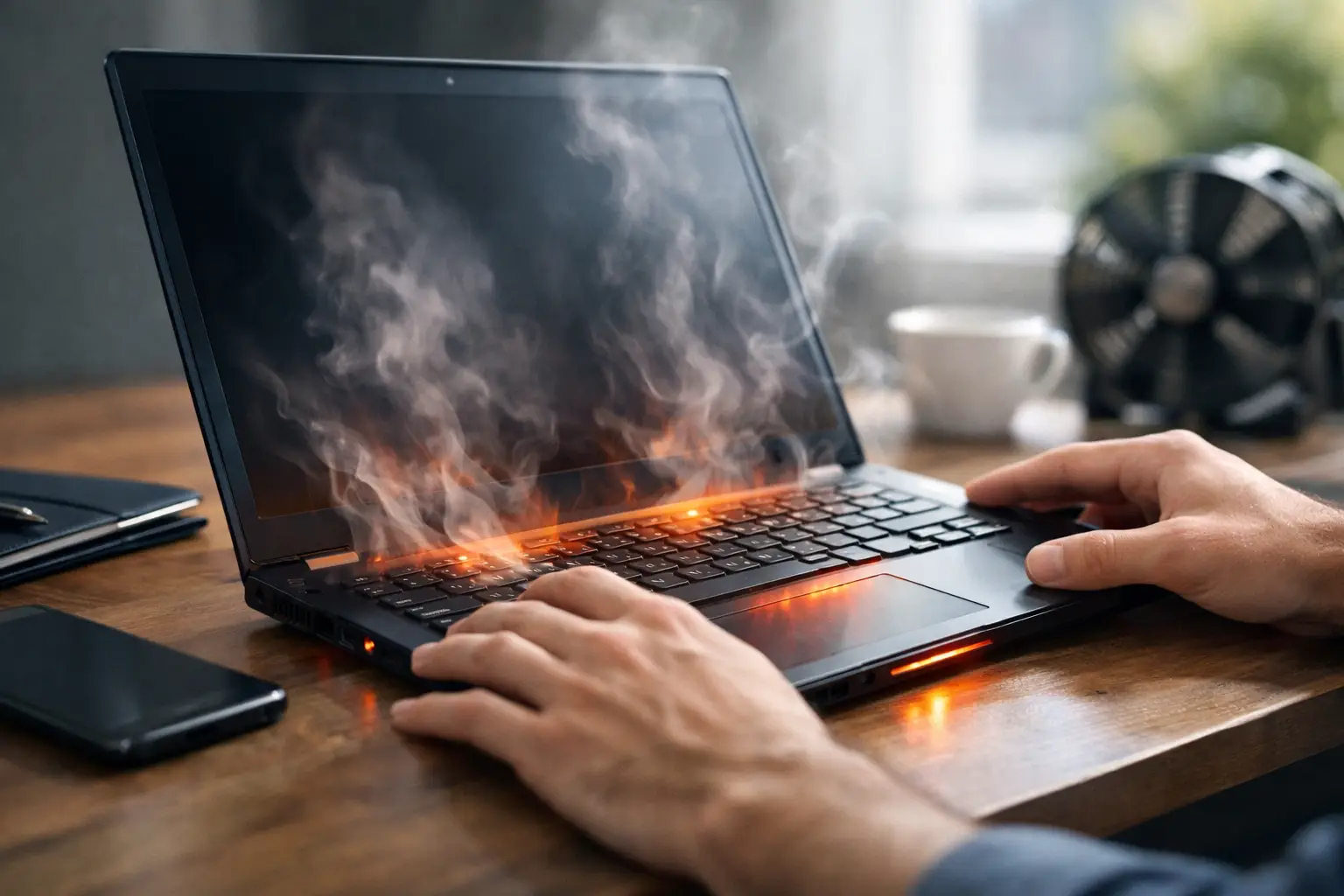
Your laptop should feel warm when you are working, streaming or charging it. It should not become too hot to use, sound like it is about to take off, freeze halfway through a task or suddenly switch itself off. If you are asking, “why is my laptop overheating?”, the answer could be as simple as blocked airflow, but repeated overheating can also point to a failing fan, worn battery or an internal hardware fault.
Heat is not just an annoyance. Left unresolved, it can slow your laptop down, shorten battery life and put extra strain on components that are costly to replace. The good news is that many causes are easy to spot, and knowing when to stop using the device can prevent a small problem becoming a bigger repair.
When laptop heat is normal and when it is not
A little warmth is expected. Your processor, graphics chip and battery all produce heat, especially when you have video calls, lots of browser tabs, games or editing software running. A fan becoming louder for a short time is also normal when the laptop is working hard.
The warning signs are heat that appears during light use, a fan that runs constantly, a hot keyboard or underside, frequent lag, screen glitches, charging problems, random restarts or a laptop that shuts down without warning. Modern devices shut themselves off to protect the internal parts when temperatures get too high. It is a safety feature, not a fix.
If the base is swelling, the trackpad is lifting, the case is separating, or you notice a chemical smell, stop charging and using the laptop straight away. These can be signs of a damaged or swollen battery, which needs professional attention.
Why is my laptop overheating during everyday use?
Dust and blocked vents
Dust is one of the most common causes. Over time, lint, pet hair and everyday debris collect around the cooling vents, fan and heat sink. Air can no longer move properly through the laptop, so the heat remains trapped inside.
This is particularly common in laptops carried around London in bags, used at cafés, or left on soft furnishings at home. Even a clean-looking device can have a surprising amount of dust inside. You may hear the fan working harder than usual, yet the laptop still feels hot because it is trying to push air through a blockage.
Poor airflow around the laptop
Using a laptop on a duvet, sofa, lap or carpet can cover the vents underneath or at the sides. The heat has nowhere to go. Slim laptops are especially dependent on clear airflow because their cooling systems are compact.
A desk or table is a much safer surface. If you use the laptop for long periods, a simple stand can create extra space underneath it. This is helpful, but it will not solve a blocked fan or failing internal component.
Too many demanding tasks running at once
A busy browser, cloud syncing, software updates, video meetings and antivirus scans can all make the processor work much harder than normal. Background apps are easy to miss, particularly after an update or when a laptop has not been restarted for several days.
Open your task manager or activity monitor and look for applications using an unusually high amount of processor power. Closing apps you do not need, reducing browser tabs and restarting the laptop may quickly bring the temperature down. If one programme repeatedly causes excessive heat, update it or consider reinstalling it.
An ageing battery or charging issue
Batteries naturally wear down. As they age, they may become less efficient and generate more heat while charging or under load. A faulty charger, damaged charging port or poor-quality replacement charger can also contribute to heat problems.
Pay attention to when the overheating happens. If the laptop mainly gets hot while plugged in, the battery, charger or charging circuit deserves closer inspection. Do not assume a cheap replacement charger is harmless. Using the correct compatible charger is safer for both the battery and the motherboard.
Failing fan, dried thermal paste or internal faults
Your laptop's fan and heat sink move heat away from the processor. If the fan is damaged, slow, noisy or no longer spinning, the temperature can rise very quickly. You may hear rattling, grinding or no fan noise at all when the device is clearly hot.
Thermal paste is another less visible cause. This material sits between the processor and its cooling system, helping heat transfer properly. Over time it can dry out and become less effective. A technician can clean the cooling system, assess the fan and renew thermal paste where appropriate.
In some cases, overheating is linked to a motherboard fault, liquid damage or a failing graphics chip. These issues need a proper diagnosis rather than guesswork, especially if the laptop also crashes, flickers or will not charge reliably.
Safe steps to cool an overheating laptop
Start by saving your work if the laptop is still responsive, then close demanding applications and shut it down. Let it cool on a hard, flat surface rather than putting it straight back into a bag. If it is extremely hot or has shut itself down, give it time before trying to restart it.
Check the external vents for visible dust and make sure nothing is covering them. You can use a soft brush around the vent openings, but avoid pushing objects inside. Compressed air can be useful when used carefully, though blowing dust further into the device or making the fan spin excessively can cause problems. If you are unsure, internal cleaning is best left to a repair technician.
Next, restart the laptop and install any pending operating system or driver updates. Updates can fix software bugs that cause unnecessary processor use. Then check for background programmes consuming resources. If the laptop overheats only while gaming, editing video or using specialist software, reduce the workload where possible and make sure the device is suitable for that task.
Keep an eye on the pattern. Does it overheat only when charging? Only on one side? Only after ten minutes? Those details make diagnosis faster and more accurate. Repeated shutdowns are a clear reason to stop relying on quick workarounds and have the laptop checked.
What not to do when your laptop gets too hot
Do not place the laptop in a fridge, near an open window in wet weather or against a cold pack. Rapid temperature changes can create condensation, and moisture inside a laptop can cause serious damage.
Avoid using it on a bed or cushion just because it is more comfortable. Do not keep forcing it through crashes and overheating warnings either. Repeated thermal shutdowns can lead to data loss and may put additional pressure on already struggling parts.
It is also wise not to open the casing unless you know exactly what you are doing. Modern laptops can have delicate clips, short cables and glued batteries. An attempted clean can turn a straightforward fan service into a more involved repair.
When to book a laptop overheating repair
A professional inspection is worthwhile if the fan is noisy or silent, the laptop becomes hot during basic browsing, it keeps shutting down, or the battery looks swollen. It is also the right choice if cleaning vents and reducing background tasks has made no real difference.
A technician can check fan performance, remove internal dust safely, inspect the battery and charging system, test temperatures under load, and identify whether the problem is software or hardware. That matters because the right repair depends on the cause. A laptop that needs a fan replacement will not be fixed by a cooling pad, while a software issue may not need replacement parts at all.
For commuters, students and office workers who cannot be without their device for long, a quick diagnosis can save time and prevent avoidable data loss. Best Tech Repair at Piccadilly Circus Underground Station can assess laptop heat problems and advise clearly on the most sensible repair, without making you guess what is happening inside.
Keep your laptop cooler for longer
Use your laptop on a hard surface, keep vents clear and restart it regularly rather than leaving it running for days. Clear out unused software, install updates, and avoid running demanding tasks while charging if you have noticed that this makes the heat worse.
Most importantly, act early. A louder fan or warmer-than-usual case is your laptop asking for attention. Getting it checked before it starts shutting down gives you the best chance of keeping your work, your files and your day on track.