
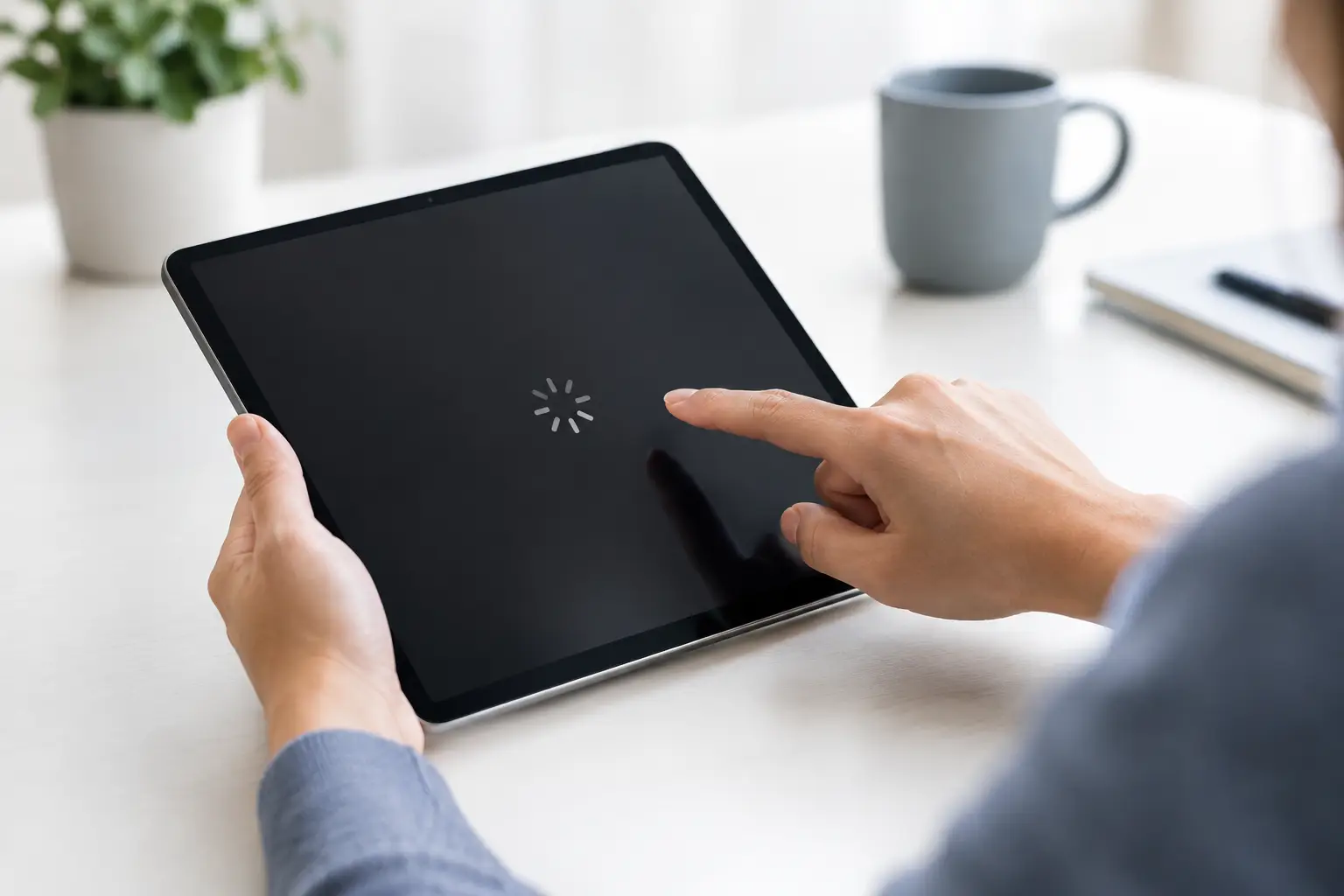
A tablet that suddenly ignores taps can turn a commute, meeting or child’s journey into a real headache. Understanding why tablet touchscreens stop responding helps you avoid the wrong fix, protect your data and decide quickly whether the problem is something simple or needs a professional repair.
The first useful clue is whether the whole display has stopped working or only part of it. A screen that lights up but will not register any touch has a different likely cause from one that responds intermittently, reacts by itself or has a dead strip down one side. The symptoms matter because a touchscreen is not just glass - it is a separate touch-sensitive layer connected to the tablet’s internal board.
Why tablet touchscreens stop responding
A temporary software fault
Sometimes the touchscreen hardware is fine, but the operating system has frozen. This is common after an app crashes, an update stalls, storage becomes very full or the tablet has been running for days without a restart. The display may remain on while taps, swipes and the on-screen keyboard do nothing.
A forced restart is the sensible first step. The button combination varies by make and model, so check the instructions for your device if the normal power button does not work. If touch returns after restarting, install any pending software updates and remove any recently added app that caused trouble.
If the same issue keeps returning, do not assume it is only software. Repeated freezing can also be a warning that the battery, charging system or internal connection is becoming unreliable.
A cracked screen or impact damage
A dropped tablet does not need a badly shattered display to lose touch response. The glass can look almost intact while the digitiser underneath has cracked or been damaged around the edges. You may notice that one area no longer responds, that the tablet only works when pressed firmly, or that it starts registering random touches.
This is especially likely if the fault appeared immediately after a drop, knock or pressure in a bag. Continuing to press hard on the screen can make the damage worse. A proper screen assessment will confirm whether the digitiser can be repaired as part of a screen replacement or whether another component has been affected.
Water, humidity or liquid exposure
Spilled drinks, rain and even steam from a bathroom can cause delayed touchscreen problems. A tablet might work normally at first, then develop unresponsive areas, flickering, ghost touches or charging issues hours later as moisture reaches connectors and internal components.
If liquid is involved, switch the tablet off as soon as possible and do not charge it. Avoid hairdryers, radiators and bags of rice. Heat can damage delicate parts, while rice does not remove corrosion or moisture trapped inside the device. The best chance of saving the tablet is to have it inspected promptly, before corrosion spreads.
A loose or damaged display connector
Inside the tablet, a thin flex cable carries touch signals between the screen and the logic board. A hard impact, previous repair, bend in the frame or gradual wear can loosen or damage this connection. The display may still show a perfect picture, but touch may work only now and then, stop after the tablet is moved, or fail entirely.
This is not a repair to attempt with household tools. Tablets are tightly built, and opening one without the right equipment can crack the display, damage the battery or tear cables that were still serviceable. An experienced technician can inspect the connection and identify whether it needs reseating, replacing or whether the screen itself has failed.
A failing battery or charging issue
It can feel unrelated, but power problems can affect touch performance. A swollen battery can push against the display from inside, causing lifting around the edge, pressure marks or erratic touch response. A poor-quality charger, damaged cable or unstable charging port can also create behaviour that looks like a touchscreen fault.
If your tablet only misbehaves while charging, stop using the charger and try a known-good, compatible one. If the screen is lifting away from the frame, the tablet feels unusually warm, or the battery drains rapidly, switch it off and arrange an inspection. A swollen battery should be dealt with quickly and safely.
Screen protector, dirt or accessories
A thick, damaged or badly fitted screen protector can reduce touch sensitivity, particularly near the edges. Moisture, hand cream, food residue and grime can have a similar effect. Remove gloves, dry your hands and gently clean the screen with a soft microfibre cloth before assuming the tablet needs a repair.
If you use a case with a built-in cover, remove it briefly too. Some magnetic covers and poorly fitting cases can interfere with sensors or put pressure on the screen. These are easy checks, but they are worth doing before spending money on a replacement part.
Safe checks to try before booking a repair
Start by disconnecting any charger, keyboard, stylus, hub or other accessory. Clean and dry the screen, remove the case or protector if it is damaged, then force restart the tablet. Once it turns back on, test several parts of the display, including the corners and the area around the keyboard.
Pay attention to the pattern. These signs give a technician useful information:
- The whole screen is unresponsive but the display is visible.
- One strip or corner does not register touch.
- The tablet taps, scrolls or opens apps by itself.
- Touch fails only while charging.
- The issue began after a drop, spill or recent screen repair.
If touch works well enough to use the tablet, back up important photos, notes and files straight away. Do not factory reset it as a first response unless you have backed up your data and have ruled out physical damage. A reset can help with a software issue, but it will not fix a cracked digitiser, liquid damage or a loose connector, and it can make data recovery harder if the device is already unstable.
When a touchscreen fault needs professional help
Book an inspection when the fault follows an impact or liquid exposure, returns after restarting, affects only certain areas of the screen, or comes with flickering, lines, lifting glass or charging problems. These symptoms point to a hardware issue far more often than an app setting.
The right repair depends on the diagnosis. In many cases, replacing the screen assembly restores both the display and touch function. Where the display is still healthy, the problem may be a connector, battery or board-level fault instead. That is why a quick assessment matters - fitting a new screen without finding the actual cause can waste time and money.
For people travelling through central London, Best Tech Repair at Piccadilly Circus Underground Station can inspect tablet touch faults and explain the repair options clearly. The aim is simple: identify the cause, use quality parts where needed and get your device back in working order with as little disruption as possible.
How to prevent the problem happening again
Use a case that protects the corners as well as the back, and avoid putting a tablet loose in a crowded bag where it can bend under pressure. Keep liquids away from the device, use reliable charging accessories and do not ignore a screen that begins lifting from the frame.
A sudden touch failure is frustrating, but it does not always mean the tablet is beyond repair. Stop charging if there are signs of liquid or battery swelling, back up your files if you can, and get a proper diagnosis before trying drastic fixes. A quick, honest repair assessment can often turn a dead screen into a tablet you can rely on again.