
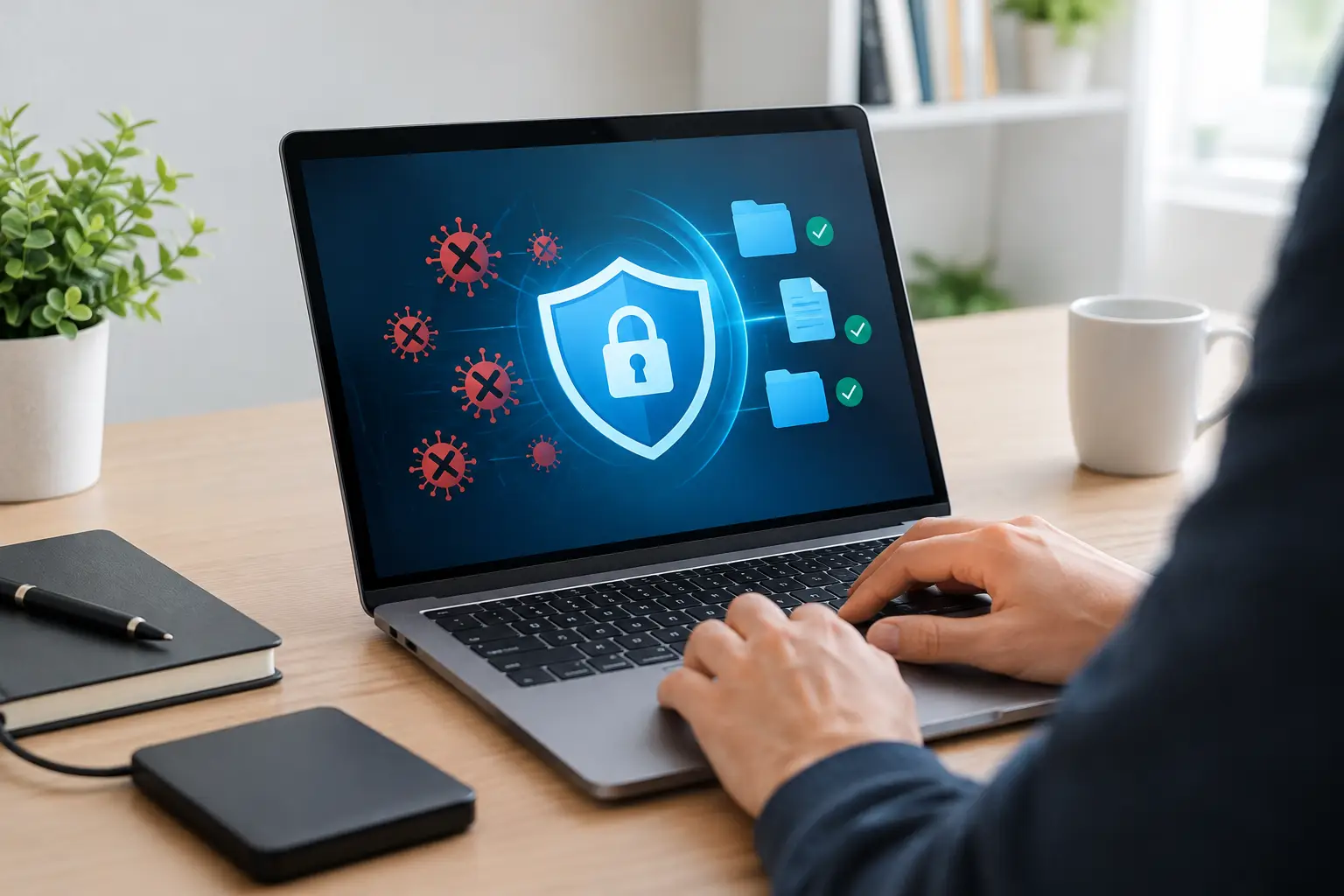
A laptop that suddenly runs hot, throws up adverts, redirects searches or asks for passwords at odd moments is not simply being slow. It may be infected. To remove laptop malware safely, act quickly but avoid random fixes that could expose more data or make recovery harder.
Malware is a broad term covering unwanted software designed to steal information, display intrusive adverts, track activity, lock files or take control of a device. Not every slow laptop has malware - an ageing battery, full storage or a failing drive can cause similar symptoms - but a few clear warning signs are worth taking seriously.
Signs your laptop may be infected
A single pop-up is not proof of an infection. Repeated changes that you did not make are more concerning. Watch for a browser homepage or search engine that keeps changing back, unfamiliar apps appearing, security software switching itself off, or adverts showing up outside websites.
Other warning signs include a laptop that becomes unusually slow when doing very little, a fan that runs constantly, files you cannot open, or emails and social posts being sent from your account without your permission. If your webcam light activates unexpectedly, treat that as urgent and stop using the laptop for sensitive tasks.
Ransomware deserves special care. It may rename or encrypt documents and show a demand for payment. Do not pay, do not delete evidence and do not keep restarting the machine in the hope it will disappear. Disconnect it from the internet and get professional advice before attempting a clean-up.
How to remove laptop malware safely
Disconnect before you investigate
Turn off Wi-Fi and unplug any Ethernet cable. This can stop malware communicating with an outside server, spreading across a home or office network, or continuing to upload data. Remove external hard drives and USB sticks too, particularly if they hold backups or important files.
You can leave the laptop powered on while you assess it, but do not sign in to banking, work systems, email or social media. If a password has already been captured, logging in again gives an attacker another opportunity.
Save essential files carefully
If the laptop still allows access to files, copy only your personal documents, photos and coursework to a clean external drive or trusted cloud storage account. Avoid transferring unfamiliar programs, browser extensions, downloads or files with odd names. They may carry the problem with them.
This is a trade-off. A complete backup is useful when a device fails, but when malware is suspected, copying everything blindly can preserve the infection. Focus on files you recognise and need. If files are already encrypted or have strange extensions, leave them alone until the cause is identified.
Start in Safe Mode if possible
Safe Mode starts Windows or macOS with fewer background services and applications. That can prevent some malicious software from launching automatically, making it easier to remove. The exact method differs by device and operating system, so do not force settings changes if you are unsure.
Once started, check for apps you do not recognise. Look at recently installed software, browser extensions and login items that start when you switch the laptop on. Remove suspicious items only when you are confident they are not needed for the laptop or your work software. Deleting the wrong driver or system component can create a different problem.
Run trusted security scans
Use the built-in security protection on your operating system and make sure its definitions are up to date once you reconnect briefly to a safe network. Run a full scan, not just a quick one. A full scan takes longer but checks more locations where malware can hide.
If the scan finds threats, follow the option to quarantine or remove them, then restart and scan again. A second clean result is reassuring, but it is not a guarantee that every infection has gone. Some threats hide in browser settings, scheduled tasks, recovery partitions or compromised accounts rather than obvious files.
Do not install several unknown ‘PC cleaner’ apps because a pop-up told you to. Fake security alerts are a common route into further trouble. Stick to protection you already trust or speak to a technician before downloading anything new.
Clean up browsers and unwanted software
Many everyday infections are browser-based. Check each browser you use for unwanted extensions, altered search settings, unfamiliar notification permissions and suspicious saved login details. Remove extensions you did not choose, clear website notifications you do not recognise, and reset browser settings if redirects continue.
Then review installed applications. Sort by installation date and remove software added around the time the issues began, provided you can identify it as unwanted. Be cautious with programmes that look vaguely legitimate. Malware often uses names intended to blend in.
Update the operating system and apps
An update will not remove every infection, but it closes known security gaps that malware may exploit. Install operating system updates, browser updates and updates for commonly used software once the laptop is clean enough to connect safely.
Avoid unsupported operating systems where possible. A laptop can still look perfectly usable while missing security fixes that help prevent repeat infections. If the device is too old for current updates, a technician can advise whether a repair, upgrade or replacement makes better financial sense.
Change passwords from another device
If you entered passwords while the laptop was behaving suspiciously, change them using a different, known-clean device. Start with your email account, because email is usually the route used to reset everything else. Then change banking, shopping, work, cloud storage and social media passwords.
Use a unique password for every important account and switch on two-factor authentication where available. Check recent account activity, recovery email addresses and forwarding rules as well. A clean laptop does not automatically secure an account that has already been accessed.
If you use the laptop for work, tell your employer or IT team promptly. It may feel inconvenient, but early reporting can protect colleagues, customer information and shared systems.
When malware removal needs professional help
Some infections are straightforward. Others are not worth guessing at, especially when your photos, university work, business files or financial accounts are involved. Professional help is sensible when the laptop will not start properly, security tools cannot run, pop-ups return after removal, files are missing, or you suspect ransomware or remote access.
A proper assessment should identify whether the issue is malware, failing hardware or both. A technician can preserve recoverable data where possible, remove unwanted software, check for deeper system changes and advise whether a clean operating system reinstall is the safest option. Reinstalling can be effective, but it is not always the first choice when important files have not been secured.
For central London users who need their laptop back in service quickly, Best Tech Repair at Piccadilly Circus Underground Station can assess software problems and data recovery concerns without leaving you to work through technical jargon alone.
Prevent the next infection
The most useful protection is often routine rather than complicated. Keep updates switched on, download software only from sources you trust, and pause before opening unexpected attachments or delivery texts. Be particularly wary of messages that create panic: a missed parcel, an urgent invoice, a suspended account or a too-good-to-be-true refund.
Use a standard account for daily use where practical, rather than an administrator account, and keep regular backups that are separate from the laptop. A backup connected all the time can be affected by ransomware too. For valuable files, combine a reputable cloud backup with an external drive that is disconnected after use.
If your laptop is showing signs of infection, the safest next step is usually the calmest one: disconnect it, protect your accounts and get a clear diagnosis before the problem becomes a loss of data or money.